
So the sound isn’t working on your device, PC or laptop, and you need to fix no sound problems. OK… first things first…
DON’T PANIC!
This kind of reminder is worth stating. There are times we look in a place twice to find a misplaced object. The reason – we searched the first time in a frantic state. Solutions come when we can take a deep breath and come at the problem with a different perspective.
In the end, resolving most computer issues including no sound, is simple, you check or test one potential cause and see if it fixes the problem. If it doesn’t… move on to the next item.
So… for no sound problems, let’s start with a few of the obvious possible solutions that are quick and easy.[/nextpage][nextpage title=”Mute/Volume”]
Check “Mute / Volume” to fix sound problems
- Check the mute and volume levels.
Important: There are two volume controls: one for the operating system and found in the taskbar and one for the application you are using.
What To Do:
A crossed out speaker volume icon or an “x” next to the speaker icon in the taskbar is an indication that volume is muted or the volume level is set to the lowest setting (the mute level).
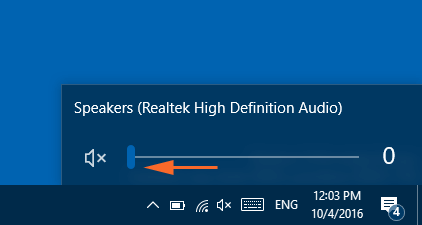
Adjust these and check if the sound is working now.
You can also check to see if the sound is working using another application or media track (YouTube or music file).
[/nextpage][nextpage title=”Check Hardware”]
Check Hardware
If you have headphones, earplugs or speakers… then we need to look at potential hardware issues.
For any of us that have had some Microsoft network administration training… the heavily emphasized piece of advice stated again and again is: check the wires and connections!
- Check the cables from the speakers to the computer. Check the cable or USB connection if that is what you are using.
Here’s a Tip: Check that you haven’t put a cable into the wrong socket! This occurs more frequently than you would expect.
What To Do:
Sometimes the issue is fixed by taking out the cable and re-inserting it. You also may need to check if the speakers (assuming you are using speakers) have power to them. You can check the power cables to make sure they are properly connected and the power is on to your speakers.
[/nextpage][nextpage title=”Volume Mixer”]
Check Windows OS & Software to Fix No Sound Issues
With some of the more obvious fixes behind us it’s now time to go down the rabbit hole. We’re going to examine the items that are controlled by the Windows operating system and software.
Most all PC users don’t realize that there are many volume controls easily accessed right from the toolbar – right from the Volume button in the taskbar!
Volume Mixer:
- Check the Volume Mixer to check the volume and sound of all items you are currently running.
Here’s How:
Right click on the Volume icon in the taskbar and select: “Open Volume Mixer”. You will see the following window appear:
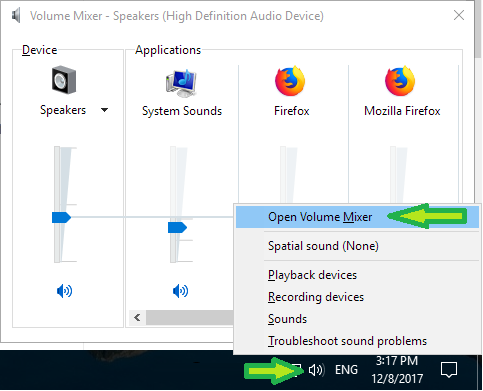
As you can see, each sound source has its own volume control that you can adjust and mute. Adjust these to make sure the volume is working for any and all of the items.
[/nextpage][nextpage title=”Playback Devices”]Playback Devices:
- Check to see that the right device is selected.
Here’s How:
Right click on the Volume icon in the taskbar and select: “Playback devices”. You will see a window like this one displayed:
The green check mark signifies which sound device is the default. Right-click on any item in the list to get the menu of options. For example, you can right-click “Speakers” and choose to configure the device or test it.[/nextpage][nextpage title=”Windows Settings”]Windows Settings:
- Check that the device is working properly in Windows.
Now you can make certain the speakers are being detect by Windows and the Device Driver is working properly. To do this you need to:
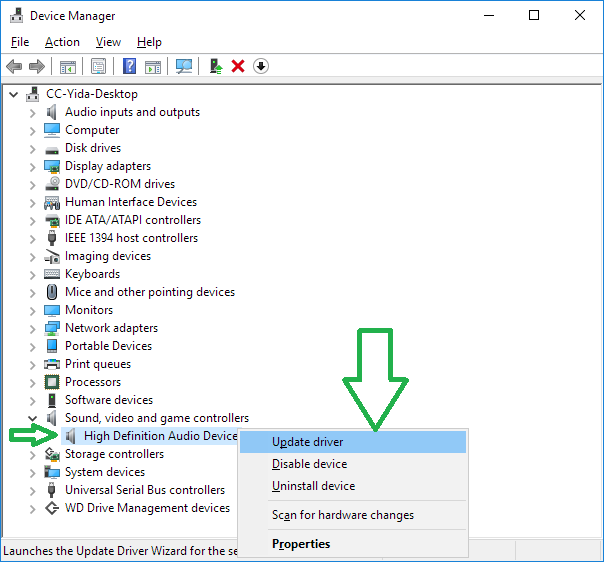
- Open the Control Panel from the Windows Start button (in most cases for recent Windows OS’s you need to right-click the Start button and select “Control Panel”).
- From the Control Panel window, select “Device Manager”.
- In the list displayed, click the dropdown arrow next to: “Sound, video and games controllers”.
- Double-click the sound device (speakers or headphones, etc.) from the list.
- From the General Tab you will see the Device Status box and a message that the device is either working properly or not. If it is not, then go to the Driver tab and click the “Update Driver” button.
[/nextpage][nextpage title=”Summary”]
Problem Fixed?
In most all scenarios the problem should be fixed using one of the solutions above. If you are still having issues you can try restarting the program that is not working or even restarting your system (complete reboot).
If there is still no sound than it could be your speakers are malfunctioning. You can test this out by connecting them to another device or test working speakers or headphones with your system where you previously had no sound.
Well… hopefully you have solved the problem and now have a better understanding of how to troubleshoot Sound issues. Hopefully the sounds of silence won’t be a source of frustration this time around.
[/nextpage]